PubChem » PubChem Help » Sketcher Help
In order to allow input structures for queries, the PubChem Assay and Structure database uses its own unique Web-based sketcher tool. This document describes its features and operation.

The sketcher was designed to be as Browser- and platform-independent as possible and should work on any recent Web browser on MS Windows, OS X, or Unix/Linux. It does not require the presence of a Java execution environment, nor does it use a plug-in requiring installation and installation privileges. It does not store any data on your computer, or changes the browser configuration, either.
The program works by streaming images to your browser, and capturing mouse events on these images. In order to be able to do that, it requires:
The sketcher is usually started from within a larger form, such as PubChem's Structure Search (https://pubchem.ncbi.nlm.nih.gov/search) tool. To access Sketcher, open the "Identity/Similarity" or "Substructure/Superstructure" tab and select the option to "Draw a structure: Launch the PubChem editor to make a structure." When the "Launch" button is clicked, a new window is opened. Depending on the contents of the source field, the sketcher window may be pre-loaded with a structure, for example by decoding a SMILES or InChI string, retrieving a structure via its CID from the PubChem database, or by getting a structure from some other source
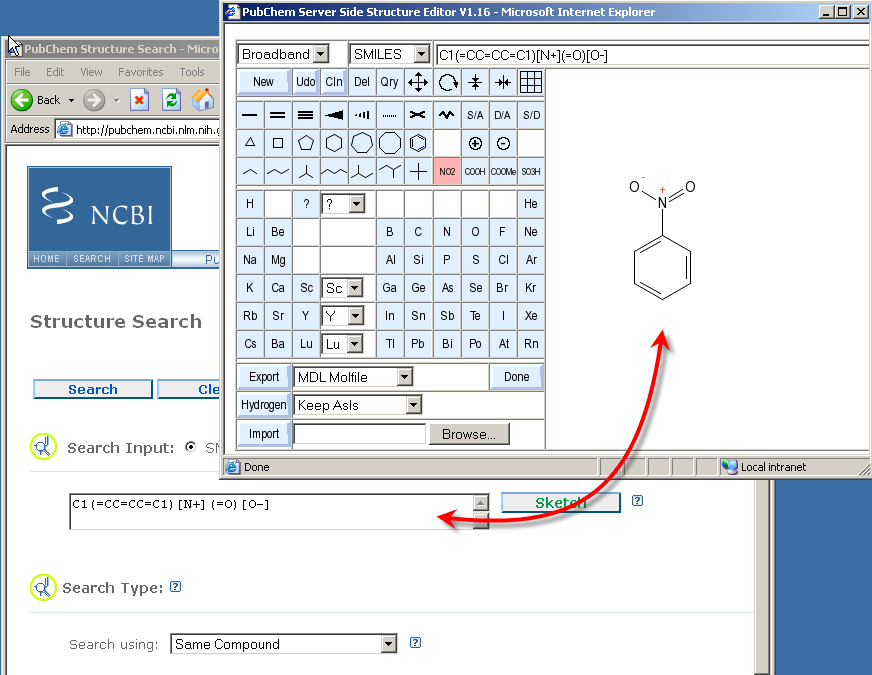
Open PubChem's Structure Search (https://pubchem.ncbi.nlm.nih.gov/search) tool in your browser. Select the "Identity/Similarity" option, and within that folder tab select "CID, SMILES, InChI." Then enter "999" (without the quotes) into the text box to specify a CID and press the Edit button. A separate sketcher window will open that will look similar to the image below.
In case the window does not open, verify that you have JavaScript enabled in your browser. If a popup blocker should interfere, use its override mechanism (such as using ctrl-click) to temporarily allow the opening of additional windows or, preferably, selectively disable the blocker for the nlm.nih.gov domain. The exact methods to achieve this are dependent on the type of blocker you may be using.
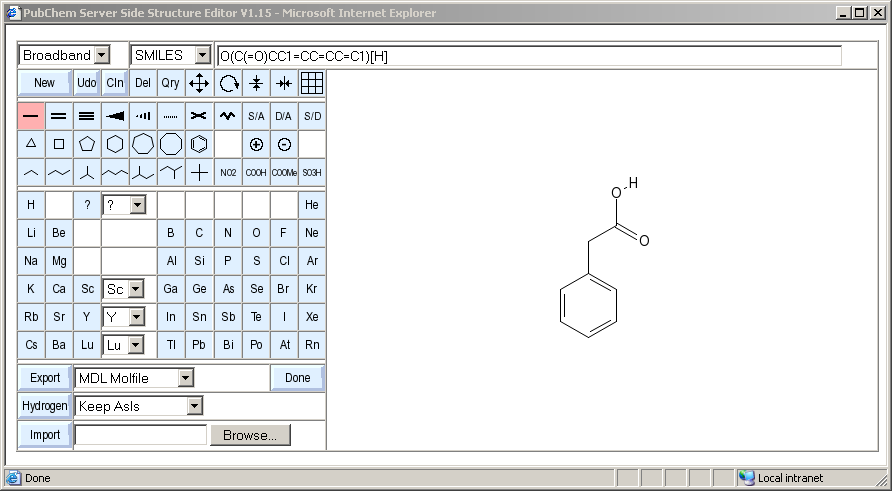
A newly opened sketcher window is divided into three distinct zones. To the right the actual sketching area is located. To the left, a number of buttons and other user interface elements control the editor mode of operation. Above the drawing area, there is a text field which displays the current structure in various encodings useful for cutting and pasting. It can also be used to input structure information into the sketcher from structure encodings on the clipboard, or even by typing in structure codes by advanced users.
The buttons on the left are used to select the various operations of the sketcher. There are two types of blue buttons. Those without a raised border (element symbols, various bond types, etc.) are mode selectors. When you click them, they are highlighted, and remain highlighted until a different mode is selected, or they are reset during by the program as a result of a user action. Only one of these mode buttons is active at any time.
The other type of button has a raised profile. These buttons perform an operation immediately when they are clicked. They do not change the overall operating mode of the sketcher. Some of these operational buttons are associated with auxiliary control elements, such as option menus or file upload buttins.
All operations can be performed with a single-button mouse. If you have more than one button, the left mouse button is used for standard drawing and selection operations. The right mouse button can be used for quick deletions. More about this can be found in the paragraph about deleting objects.
In case some error condition was encountered while drawing which prevented an operation from performing at least part of its intended work, the drawing area or a part of it will briefly flash orange. If the location of the problem, such as an atom with a valence violation, could be identified, the offending object is flashed as an orange, localized box. If the problem was global in nature, the full background of the drawing area briefly turns orange.
The error flash is generated by sending a specially crafted animated GIF image to your browser. In order to see the flashes, you need to allow image animations in your browser. If you disallow them, no harm is done except that you miss the visual feedback. The software intentionally does not use audio cues.
The choice menu in the upper left corner can be used to lower the bandwidth requirements of the sketcher. This can be useful in case it needs to be accessed via dial-up, or congested connections.
If the choice menu is set to Dialup, a few changes in the processing of user input will reduce the amount of data transmitted and make the application more responsive over channels with limited capacity:
The middle section of the button area is filled by element buttons that are roughly arranged like the periodic table of elements. Clicking one of these buttons will switch the editor to the element mode. When one of these buttons is active, the following operations are supported in the canvas area to the right:
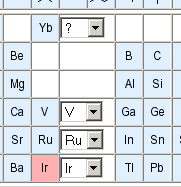
This will add a single atom of the selected type at that location.
This will change the existing atom to the selected element. If the old atom has bonds, and the number of bonds would result in a gross valence violation, some bonds will be automatically removed.
This will add a new atom at the end position, and attempt to make a single bond to the atom where the operation started.
The button set only displays a single column of buttons for minor group elements. The element any one of these button represents can be changed by means of the option menu to the right of each of these buttons.
In a similar fashion, lanthanides and actinides, as well as deuterium, tritium, and a query `any' atom can be obtained from the button above the minor group element buttons.
The second row of buttons provides a selection of different bond types. When one of these buttons are active, the sketcher is in bond drawing mode.

The order or style of the bond will be changed to the selected type if possible without gross valence violations.
A new bond will be created, beginning from the existing atom. If the mouse button is released on another atom, a bond is created or modified between the start and end atoms. If the location of release is not occupied by any atom, a bond to a new carbon atom is created.
A new bond to a carbon atom will be sprouted from the start atom. If possible, a 120 degree angle will be maintained to existing bonds on the start atom. If that is not possible, the largest gap in the bond sphere will be filled.
A bond between two newly entered carbon atoms will be created using the start and end locations at end points of the bond.
A carbon atom is entered at the location where the mouse was first pressed down, and then a bond is created between the new atom and the end atom.
A horizontal bond between a pair of newly entered carbon atoms will be created.
Besides single, double and triple bonds a couple of special bond types are accessible via the bond button set.
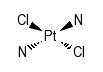
These are used to specify stereochemistry. You may place them anywhere, but they will only specify stereochemistry at atoms which can possibly exhibit tetrahedral stereochemistry, including sulfoxides and similar environments with a free electron pair. A set of four wedges placed on a possible square planar stereocenter is also recognized following the IUPAC recommendations.
The PubChem database uses a special complex bond type to encode bonds in complexes which cannot be adequately described by VB bonds. The dotted line bond is used to encode this type of bond. Complex bonds do not participate in electron counting for valence bonds and do not have an inherent bond order. If used as a query bond, they are an "any" bond which will match any database structure bond.
The crossed bond type is a special type of double bond which is used to indicate that the drawn positions of the bond ligands do not imply defined stereochemistry on a stereogenic double bond.
The S/A (single or aromatic), D/A (double or aromatic) and S/D (single or double, but not aromatic) are query bond types which can be used to flexibly define the type of database structure bond which can match this bond if the sketched structure is used for substructure searching. These bonds cannot be used for full-structure lookup.
Charges on existing atoms can be specified by selecting the plus or minus charge buttons. If one of these modes are active, a click on an existing atom will increase or decrease the charge by one.
Note that there is currently no support for specifying explicit radicals.
Below the bond drawing buttons, two rows of buttons allow the convenient input of larger structural fragments.
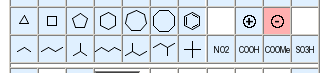
The first row of buttons display important basic ring systems. When a button has been activated, its associated drawing mode is used as follows:
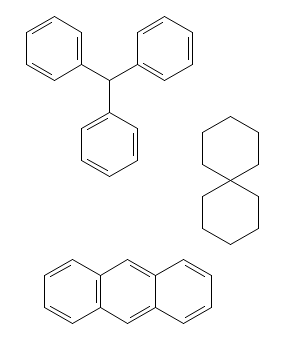
A ring of the selected type is added, with its center at the click position.
The selected ring is sprouted from the atom via a single bond, using a 120 degree bond angle where possible.
The selected ring is sprouted from the atom, incorporating the start atom as first ring atom. If the start atom is already a ring atom, a spiro system is created.
The ring is annealed to the existing bonds. In case of the phenyl fragment, a smart decision is made about where to put double bonds in the added ring.
In case valence restrictions prevent the full execution of a ring addition, bonds to the source atoms may be omitted.
The second row of buttons displays a couple of important chain fragments and functional groups. These are used in a very similar fashion to the ring fragments, but the spiro or bond addition modes are not supported for them. They can only be added as stand-alone fragments or sprouted from an existing atom.
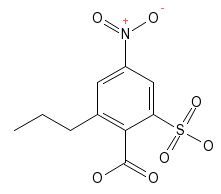
The structure to the right can be built with five mouse clicks into the drawing area, plus five button selections: select the phenyl ring fragment, click anywhere into empty drawing area, select the nitro functional group fragment, click onto the ring atom in the drawing to be substituted, select sulphonic acid group button, again click into drawing area, and repeat twice more for the carboxyl group and the n-propyl group. If desired, a complete set of hydrogen atoms can be added as a final step (see below).
The fragment button row on the main editor window only shows a small collection of frequently used fragments. A larger template library can be opened by clicking on the grid button in the upper right of the button section. An auxiliary window with tabs for various types of fragments of biological importance opens.
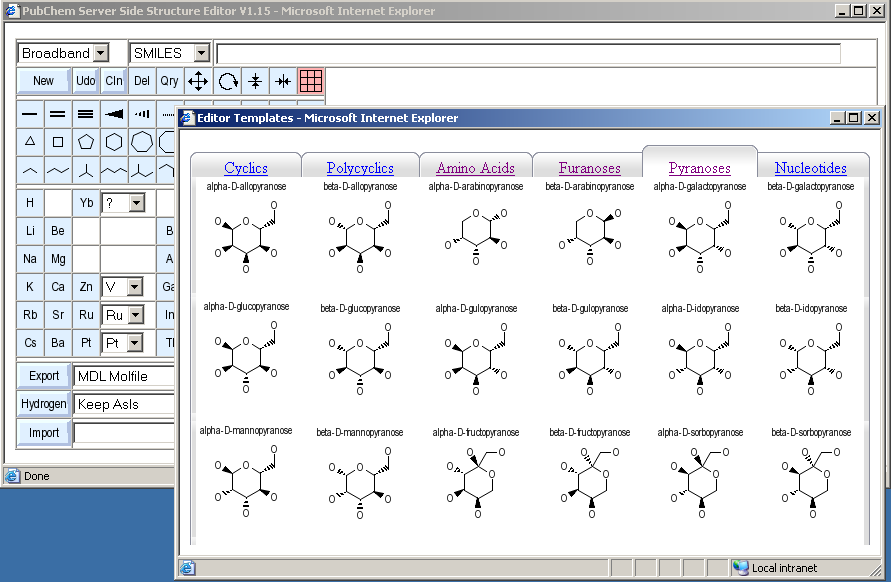
You can switch between template collections by clicking on the tabs. Individual templates are selected by first clicking onto them, and then into the drawing area where they should be placed. The click position is the center of the fragment placement position. After transferring a fragment into the drawing area, the template window is closed, and the sketcher automatically activates the move mode in order to allow more precise placement of the transferred fragment.
It is currently not possible to automatically link a transferred fragment to existing drawing components at the instant of transfer.
To the left of the template grid button, the top button row contains four buttons for graphical modifications of the current structure.
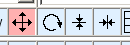
This mode allows you to move structure fragments, atoms or bonds. The position of the initial mouse click determines the object to be moved. If an atom is clicked, only that atom is moved around as long as the mouse key is pressed. All bonds to that atom will adjust. If the clicked object is a bond, both atoms of the bond will be moved in parallel. If neither an atom nor a bond is clicked, but the click point is within the bounding box of a larger fragment on the drawing area (a molecule), the whole fragment is moved.
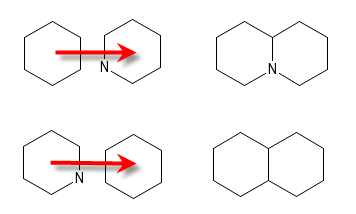
If at the moment the mouse button is released there are no overlaps between the moved atoms and any other atoms, only the graphical position of the moved objects will have been adjusted. If there are overlaps, an attempt is made to merge the overlapping atoms. Atoms that have not been moved have precedence. In the graphic to the left, if the left ring is moved onto the ring in the middle so that the rightmost two atoms of the moved ring overlap with the leftmost two atoms of the other ring, the results will be as depicted in the right column. If valence restrictions prevent some bonds from being formed, they will be omitted.
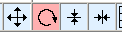
This mode will allow you to rotate fragments on the drawing area by clicking and dragging with the left mouse button. The center of rotation depends on the object at the location where the mouse button was clicked. It can be either an atom, a bond (center of rotation is the center of the bond) or a molecule when the click occurred in the bounding box (the center of rotation is the molecule center). Rotation is currently locked to 30 degree steps. When the rotation is finished, after releasing the mouse button, an atom merging step identical to that in the move mode is performed.
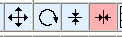
The mirror buttons allow you to easily generate the mirror image of a fragment, or to change the stereochemistry of a double bond. If a double bond is clicked, the ligands on one side of the bond are flipped so that the compound with opposite cis/trans stereochemistry on that bond results. If the click point is a molecule box, the whole molecule is mirrored along the x or y axis. All tetrahedral stereochemistry and wedge bonds are updated to represent the enantiomer of the mirrored molecule. There is no special action for clicking onto an atom - this is the same as a click into the bounding box.
The button marked Del is used to enter the object deletion mode. When this mode is active, the following operations are supported:
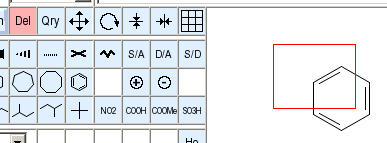
The atom and all the bonds it participates in are deleted.
The bond will be deleted, but its atoms remain.
The complete fragment will be deleted.
This is shown in the image above. A red box is displayed which follows the dragged mouse. When the mouse button is released, all objects within the selected area are removed.
If you are using a mouse with more than one button, the right mouse button is a shortcut to deletion opeations. It will always work, without the need to switch into the deletion mode. It supports the quick deletion of atoms, bonds and full fragments. The selection rectangle can only be used in the proper deletion mode.
The quick deletion mode is especially useful when you needed to click into the drawing area, for example in order to assign it the keyboard focus, and by this click inadvertently added a single atom. A quick right click, and the spurious addition is gone.
The button marked Udo implements a simple undo/redo facility. Only a single operation can be undone. If the button is then clicked again, the undo operation is itself undone, i.e. you end up with the old structure again.
The New button deletes the current drawing completely and gives you a blank slate. This operation can also be undone in case the command was executed in error.
Both buttons perform their operations immediately (as indicated by their raised shape) and are not modes. Undo does not change the current sketcher mode, New resets it to the single bond drawing tool.
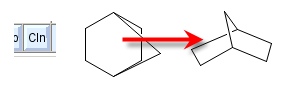
The button labelled Cln (clean) recomputes the structure layout without changing other aspects of the structure. The image to the right shows a sample molecule before and after cleanup. In case a cleanup should not yield an improved structure layout, it can be undone.
The sketcher supports the setting and deletion of a limited set of query attributes on atoms and bonds. In order to activate the query attribute mode, click the Qry button. In this mode, the left mouse button can be used to click onto atoms or bonds. Depending on the type of object clicked, different query attribute windows will open.
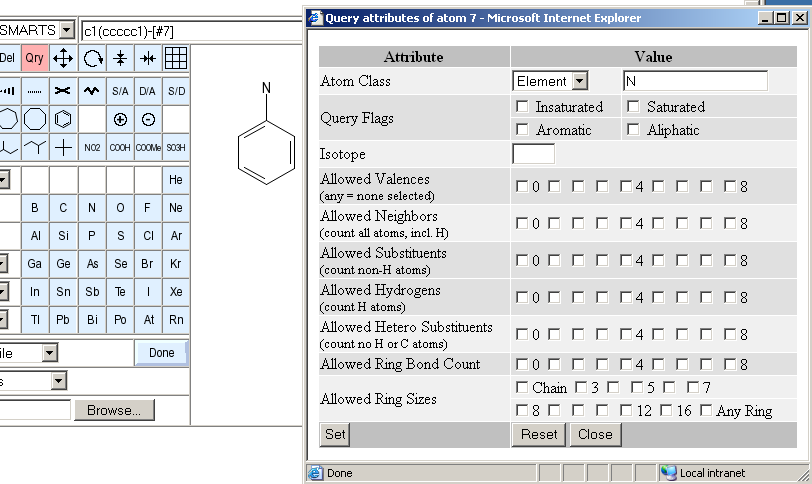
The image above shows the atom attribute window. The following attributes can be set or reset:
There are four different classes and three predefined element sets accessible in this row. By default, atoms in the sketch correspond to a specific type of physical atom with a defined element. If this atom class is selected, the element may be changed by entering a new element symbol in the text filed to the right. This is equivalent to selecting an element button and clicking onto the atom which should be changed. The other atom classes are any, list and negative list. An any atom will match any atom in database structures when used in substructure queries. The text field is ignored for this atom type. A list is a set of alternative elements for this atom. You need to specify a space-separated list of acceptable element symbols in the input field to the right. The negative list is the same as a normal list, except that all elements except the ones specified in the text field will match. Finally, the predefined element sets hetero, halogen and metal are shortcuts for popular element lists. These shortcuts also ignore the text field. Atom classes other than the simple element atom cannot be used for hashcode-based full structure searches.
This set of four check boxes allows you to request saturation or insaturation, and explicit aliphatic or aromatic character of a matched database structure atom. Saturated/insaturated and aliphatic/aromatic are mutually exclusive. These explicit flags which are applied only to a single atom always override any global match conventions set in a general structure search panel which opened the editor window.
Here you can specify the nucleon count of an isotope label on that atom. The input is a single integer. This information will automatically be used for substructure searches and also, if an appropriate hashcode is used, for hashcode-based full-structure queries.
This is a set of checkboxes where you can set allowed valence states of the atom when matched to a database structure. If no explicit valences are selected, the atom can be of any valence. Note that non-VB bonds (complex bonds, ionic bonds, etc.) in database structures have a zero valence count contribution.
This checkbox set works the same way as the valence row above, except that the bonded neighbors are simply counted, and bond orders and bond types are ignored.
Essentially the same as the neighbor count, except that hydrogen is not counted in the bonded neighbors.
This constraint is complementary to the substituent and neighbor counts.
Essentially the same as the neighbor count, except that neither hydrogen nor carbon bonded neighbors are counted.
The number of ring bonds the atom may participate in. Note that both VB and complex bonds can be ring bonds, but ionic bonds and other exotic types are excluded in the ring bond detection and are never considered part of a ring.
If you select one or more of these checkboxes, the atom can only match to database structure atoms which are a member of a ring of at least one of the selected sizes, or specifically a chain atom. The ring set used to determine this property is dependent on the back-end structure database system. For PubChem, it is an extended set of smallest rings in which all 3-atom sequences of bonded ring atoms are part of at least one ring. This ring set is more symmetrical than the classical SSSR.
Any atom query attributes which are set in the atom query panel, or which are already present when a structure is pre-loaded or imported, are reflected in the drawing on the canvas.
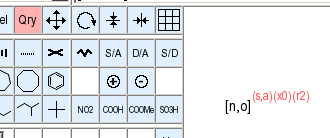
Atoms with query attributes are drawn with extended atom symbols and/or read attribute annotations. These special element symbols are used for extended symbols:
For query attributes with alternative possible counts, an attempt will be make to contract the displayed set as much as possible using closed ("1-2") and open ("-1" or "4-") ranges and lists of alternative single values ("3,5").
The structure handling library used to implement this applications supports many more query attributes than those accessible via the atom attribute panel. In case these were imported by reading a file with a query specification, other attributes may be displayed in addition to those described in this section. As long as they are not overwritten by explicit setting of new attributes on affected atoms, they will, if possible in the structure data transfer format, be preserved in structures submitted via the editor.
If the editor is in query attribute mode, and you click onto a bond, this query attribute window opens:
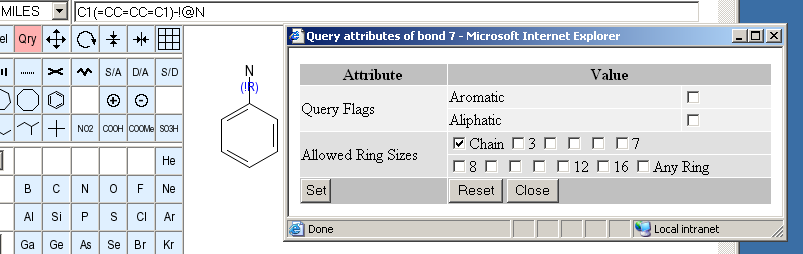
Its mode of operation is very similar to the corresponding atom panel, but there are different and fewer attributes which can be set and changed.
You can request a bond to be matched only to aromatic or aliphatic database structure bonds.
If you select one or more of these checkboxes, the bond can only match to database structure bonds which are a part of a ring of at least one of the selected sizes, or specifically a chain bond. The ring set used to determine this property is dependent on the back-end structure database system. For PubChem, it is an extended set of smallest rings in which all 3-atom sequences of bonded ring atoms are part of at least one ring. This ring set is more symmetrical than the classical SSSR.
As for atoms, query attributes of bonds are displayed on the drawing area. The annotation color for bond attributes is dark blue, and attribute annotations are drawn over the center of the bond.
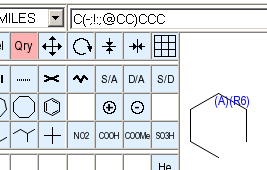
These characters are used to display bond query attributes:
For query attributes with alternative possible counts, an attempt will be make to contract the displayed set as much as possible using closed ("1-2") and open ("-1" or "4-") ranges and lists of alternative single values ("3,5").
The structure handling library used to implement this applications supports many more query attributes than those accessible via the bond attribute panel. In case these were imported by reading a file with a query specification, other attributes may be displayed in addition to those described in this section. As long as they are not overwritten by explicit setting of new attributes on affected bonds, they will, if possible in the structure data transfer format, be preserved in structures submitted via the editor.
Above the drawing area, a text field displays continuously updated information about the currently edited structure. The type of data displayed can be changed by the choice menu to the left of the text field.
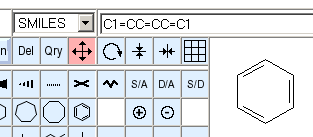
The following choices are available:
The text line shows a SMILES encoding of the edited structure, assuming that hydrogens are implicitly added. The encoding of aromatic systems is in Kekulé form for maximum easy of decoding.
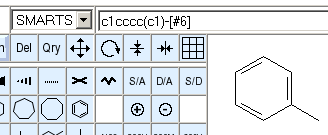
The text line displays a SMARTS encoding. The atom aromaticity atom attribute (lowercase element symbols) is automatically set for identified aromatic systems in the drawing. Atoms for which the aromaticity status cannot be determined are encoded as element numbers ([#6] for carbon) to avoid implicit assumptions about their aromaticity when decoding. Aromatic bonds are encoded as implicit bonds, aliphatic single bonds use explicit single bond encoding ([#6]-[#6]).
The line displays an InChI encoding of the structure. InChI is a new IUPAC standard for compact, unique representation of chemical structures. A full set of implicit hydrogen is assumed in the encoding. All hydrogen atoms are encoded with fixed positions so that the structure decodes to exactly the same tautomer as drawn.
The line displays the molecular formula and molecular weight. A full complement of hydrogen atoms is implicitly assumed.
The line content is a Sybyl Line Notation encoding of the current structure.
The text in the data field can be conveniently be copied and pasted with normal text highlight and clipboard operations. Thus, the sketcher can be a convenient input tool even for sites which do not possess a direct data update link to the main query form but do allow their structure input data to be encoded in SMILES, SMARTS or SLN.
In the SMILES, SMARTS and SLN representations, atom and bond query attributes are encoded as far as technically possible. Not all supported query attributes can be expressed in all of these line notation formats. The sketcher SMILES encoding uses the following custom extensions:
The structure data line serves not only as an information display. It is possible to enter structure codes in this field and import structure data into the drawing area.
Structure import is performed by clearing the line, and then editing or pasting a structure code into this field and finally pressing the return key. The setting of the display choice menu to the left of the field has no influence on the operation.
If the decoding of the structure data succeeds, the encoded content will be merged into the existing drawing as a new additional fragment. If it is intended to replace the current contents, you need to clear the drawing area first by pressing the New button. Fragments are imported without implicit hydrogens and are placed automatically.
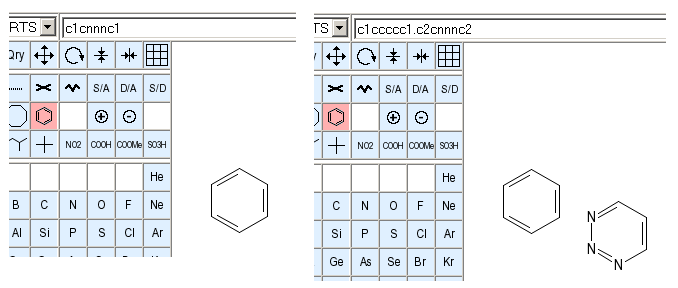
The images above display the drawing area before and after the SMILES string c1cnnnc1 was imported. Note that the implicit aromatic system in the input string was automatically resolved to a proper Kekulé form.
The complete set of supported structure data string formats:
The supported strings that can be imported via the data line may also be directly pasted from the clipboard into the drawing area by means of the standard ctrl-V keyboard shortcut, provided that the drawing area has keyboard focus. This method has the additional advantage that the location of the mouse at the moment of the keypress determines the location of the center of the newly added fragment. Depending on the browser and client operating system, the drawing area may not automatically have keyboard focus when you move the mouse into it. To make sure that it has, click the mouse once. In case this leads to the addition of an unwanted atom or a fragment, use the right mouse button to delete these.
The final method for loading existing structure data into the sketcher is by means of file upload.
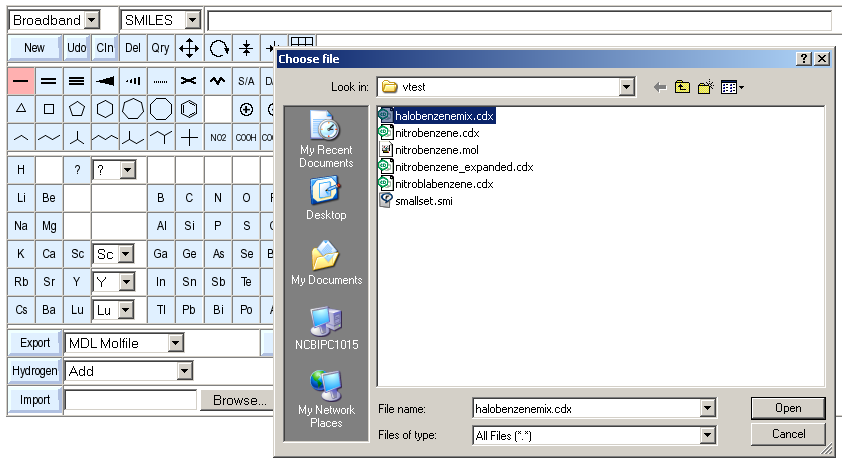
In order to do this, select an existing structure file via the Browse.. button and then press the Import button. The file is then read and added to the existing content. In case you want to guarantee that the imported file is the only sketcher content, press the New button before the import.
Supported file formats: SDF/MOL, SMILES/SMARTS, and InChI. While other file formats may work, they are not supported.
The import function only reads the first record of multi-record files. So in case you attempt to upload an SD-file, only the first record will show.
The hydrogen status of the imported structure will be adjusted at upload time depending on the setting of the Hydrogen option menu. These are its possible values:
A standard set of hydrogens is added to all open valences.
Hydrogen is added to all hetero atoms and carbon atoms where it is needed to make the encoding unambiguous, i.e. at stereo centers and stereo bonds, as well as to carbon atoms which traditionally are drawn with explicit hydrogens (aldehydes, C triple bond terminals, etc.).
The hydrogen status is kept as it was in the upload file.
Hydrogen is remove from carbon atoms, except where it is needed to determine stereochemistry, or where it is traditionally drawn (aldehydes, C triple bond terminals, etc.)
All hydrogen atoms are removed from input.
The sketcher can export the currently edited structure in various formats. This capability makes it a convenient tool for the input of data sets of limited to be used locally, or even file format conversion.
The current structure is exported by clicking on the button labelled Export. A file selector box will open and let you specify the name and location of the file downloaded from the sketcher server.
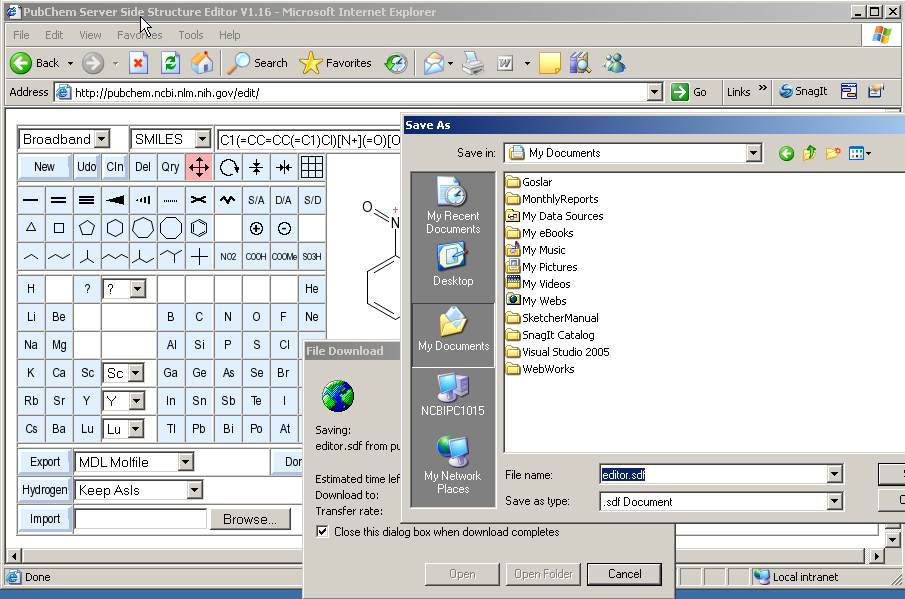
The default name of the download file is editor.xxx, where xxx is a suitable default suffix for the selected file format.
The desired format of the file can be selected, before clicking the Export button, from the menu to the right of that button. The exact list of formats which can be used for export is : structure exchange formats (MDL Molfile, SDF, SMILES, SMARTS), structure editor formats for further clean-up of the drawings for publications etc. (ChemDraw CDX) and image downloads (GIF, PNG, SVG, EPS).
Besides its role for file import and export of structure data, the Hydrogen option menu can also be used for direct manipulation of the currently edited structure.
Simply set the menu to the desired operation, and press the Hydrogen button to the left of the menu. The hydrogen status of the drawn structure will be immediately adjusted.
Many of the sketcher modes can be controlled by keyboard shortcuts. This feature allows advanced users to keep the mouse in the drawing area without moving it left and right to switch buttons.
These are the shortcuts:
The mnemonic for element shortcuts is that lowercase letters select the element where the single-letter symbol corresponds to the pressed key. Uppercase letters select the most important element with a two-letter symbol which starts with the pressed key.
There is no 9-membered ring template which could be associated with key 9.
A question which has been asked more than once concerns the problem of how to transfer the edited structure data from the sketcher to a linked form which opened the sketcher window.
The answer is simple: There is absolutely nothing a user needs to do to achieve this. Data transfer is automatic, and dynamic. Every structure change is immediately reported to the caller form. There is no button which needs to be clicked in order to transmit the currentl sketch.
As described above, there is no need for any user action to transmit the structure data to an originating form for further processing. The sketcher can thus be quit at any time, without fear of data loss, simply by closing its window by means of the standard mechanisms of the client platform, such as clicking on the cross-shaped close icon on the upper right of the windows on MS Windows.
Nevertheless, since in our experience many users appear to be more comfortable if they can hit a dedicated, clearly labelled button to finish the arduous task of inputting an important query structure, we have added a big Done button to the sketcher button set. It is located to the right of the Export controls.
This prominent button simply closes the sketcher window and does nothing else.